Features
All of MuChat's features
From the inbox to reports, from the chat widget to developer tools: how each thing works, one by one, as it is.
Inbox
The screen where an agent spends the day. Website, WhatsApp and Telegram conversations sit in the same list.
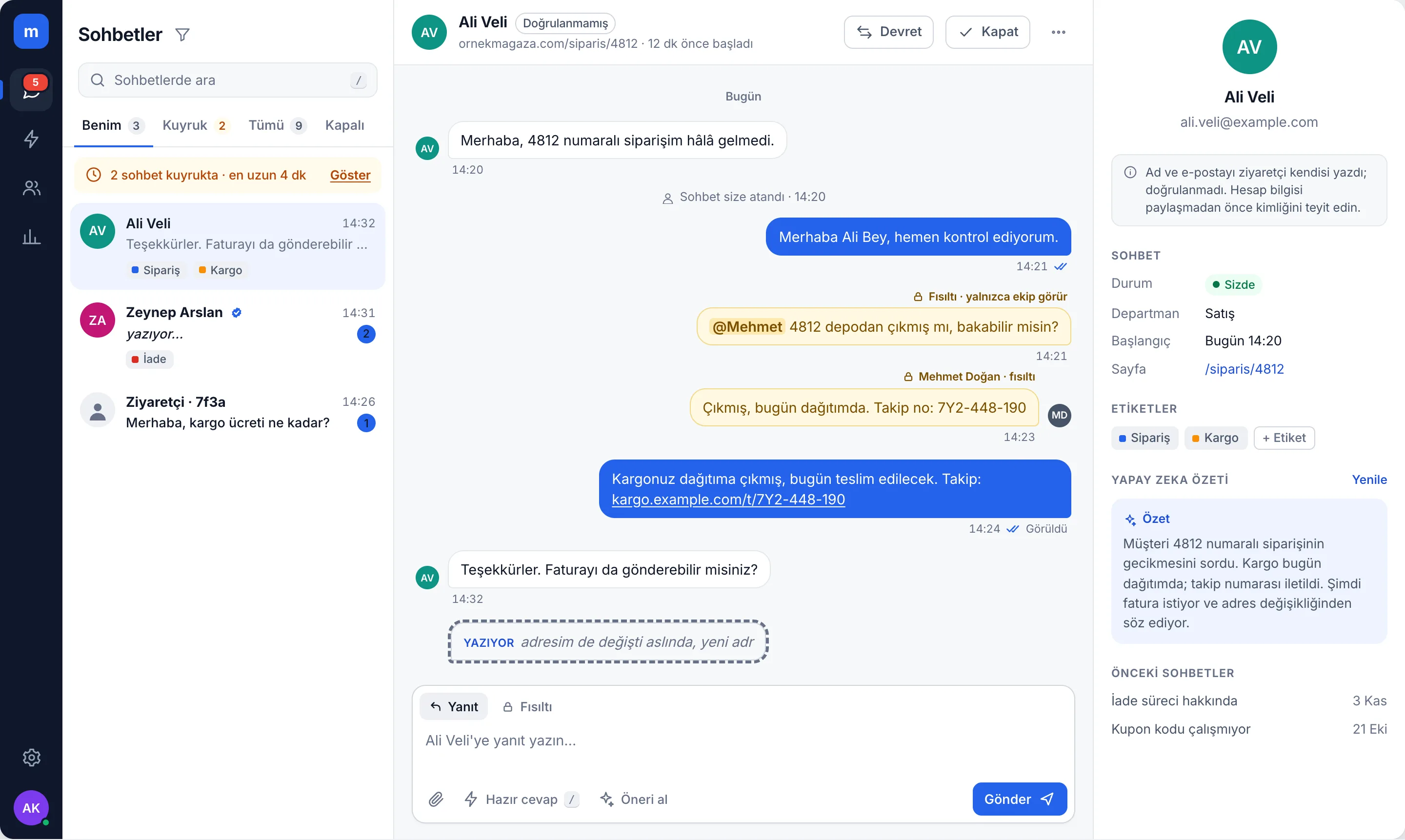
Conversation list and queue
Mine, Queue, All and Closed tabs. When someone is waiting in the queue, an alert at the top of the list shows the longest wait time. Search covers name, email and last message; the unread count also appears in the browser tab title.
Typing preview
You see what the visitor is typing before they send it. If another agent is typing in the same conversation, you see that too.
Whisper
Switch the message box to whisper and it turns yellow; what you write is seen only by the team and never reaches the customer. You can whisper in a queued conversation without taking it.
Canned replies
Type / and pick one. They are defined at personal, team or department scope; variables such as the customer's name fill in automatically on send and can be previewed with sample values before you save.
Tags
Add colored tags to conversations. Reports show the number of conversations and the times per tag.
Chat transfer
Transfer a conversation to an agent, a department or the general queue, with a note attached. A supervisor can take over someone else's conversation.
File sharing
Files up to 10 MB, attached by selecting or pasting. Images appear as thumbnails, other files with a download button. Files are kept in private storage and open only through a signed link.
Read receipts and previous conversations
You can read below your message that it has been seen. The same person's previous conversations are listed in the right-hand column; the open conversation's URL can be shared, and the same conversation opens when the page is reloaded.
Visitor blocking
Block an abusive visitor with a reason and a duration. An agent can block for at most 24 hours; longer or indefinite blocks and IP range blocks require supervisor permission.
Notifications
A sound for new messages and conversations outside the one you are viewing; a desktop notification when the panel is in the background. The desktop notification does not include the message text: no customer data shows up on a lock screen or a shared screen.
Keyboard shortcuts and theme
/ to search, ↑ ↓ to move between conversations, A to take a queued conversation, Enter to send. Light and dark theme; the panel comes in 12 languages.
Closing inactive chats
If nobody writes for the period you set, a conversation assigned to an agent closes automatically (15 minutes by default; anywhere from 5 minutes to 7 days, or off). A conversation waiting in the queue is not closed.
Chat widget
The side the visitor sees, opening in the corner of your site.
Your look
Set the title, color and welcome text in the panel; you see it in the preview on the right as you type. On narrow screens the widget opens full screen, and it follows the device's light or dark theme.
48 languages
The widget opens automatically in the visitor's browser language; Arabic, Persian and Hebrew are laid out right to left. You can write the title and welcome text separately for each language, or lock the language.
Pre-chat form
If you like, name and email are asked for before the chat; each field can be off, optional or required. Users who are logged in to your site are not asked.
Verified visitor
You pass the identity of a user logged in to your site with a token signed by your server; the agent sees the customer with a verified badge. A name and email typed by an anonymous visitor are marked “unverified”.
Satisfaction rating
When the chat closes, the visitor leaves a rating from 1 to 5 and, if they wish, a comment. The rating feeds into the agent and overview reports.
Agent photo
Once the chat is assigned to an agent, their photo appears in the header and next to their messages.
Won't break or slow your site
The widget runs isolated: your site's styles don't leak into it, and its styles don't leak into your site. The single file loaded on the page is 26 KB compressed; a connection is opened only when the visitor opens the widget.
No message gets lost
If the connection drops, the widget reconnects automatically and resends any message that failed to send; the same message is never saved twice. When the page is reloaded, the chat picks up where it left off.
Only on your site
The widget works on the domains you define in the panel; someone who copies your key cannot use it on another site.
Accessible
Fully usable with the keyboard, buttons are labeled, new messages are announced to screen readers, and the “reduce motion” preference is respected.
Team and routing
Who takes which conversation, who sees what.
Roles and permissions
Four roles: agent, supervisor, admin, account owner. An agent handles their own conversations; a supervisor sees everyone's conversations and the reports; an admin manages the team, the widget and the plugins. The permission table is shown openly in the panel.
Departments
Define departments such as sales, support or returns. Each department has its own assignment method: to the least busy agent, in turn, or manually.
Automatic or manual assignment
With automatic assignment, a new conversation goes to an agent who is online and has capacity; if nobody is available, it joins the queue. With manual assignment, agents take conversations from the queue themselves.
Concurrent chat limit
For each agent you set how many conversations they can handle at the same time; an agent who has reached the limit is not assigned new conversations.
Status
Online, away, offline. No conversations are assigned to an agent who is away; the team page shows everyone's status and number of open conversations live.
Invitations and member management
Invite your teammates by email. You can change a member's role, departments and limit, and deactivate their account when needed; when a member's role changes, their sessions are signed out.
AI for the agent
It helps the agent; it sends nothing to the customer without your approval. It is off by default; the account admin turns it on.
Reply suggestions
It suggests up to three different replies to the customer's last message. Edit the one you like and send it.
Chat summary
It produces a short summary for the agent taking over the conversation and saves it alongside the conversation.
Rewrite
It corrects your draft, shortens it, makes it friendlier or more formal, or translates it into another language.
You know what is sent
Only message texts go to the AI. File attachments, the customer's email and phone number, and the IP address are not sent; neither are whispers.
Visitors and traffic
Who is on your site, and who you are talking to.
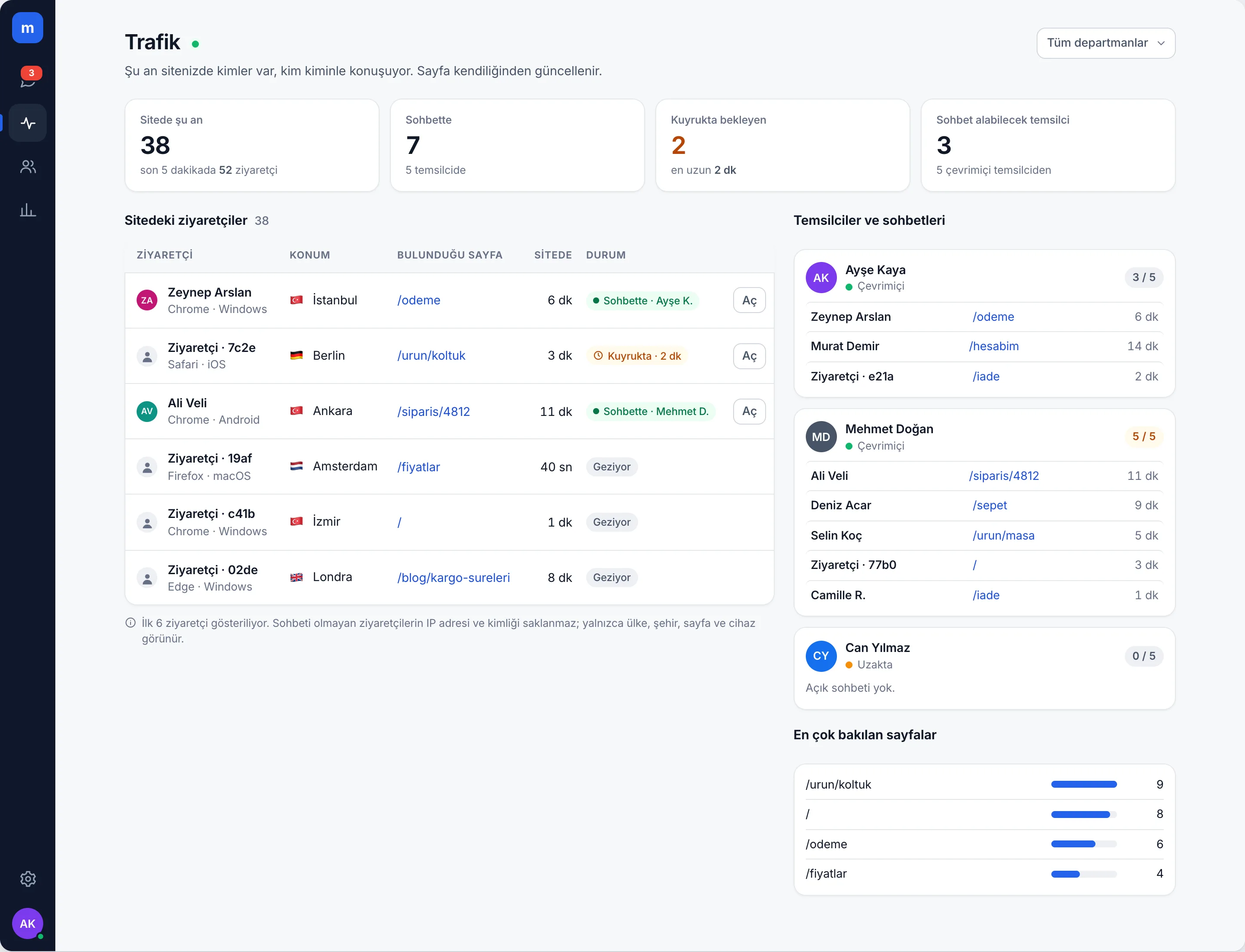
Live traffic
How many people are on the site right now, how many are in a chat, how many are in the queue, and how many agents can take a chat. Each visitor's city, current page, time on site and device; the most viewed pages. Refreshes every ten seconds.
Visitor details
Next to the conversation you see the location (country and city), device and browser, the page the visitor is on right now and their language. The query part of the page URL is not stored.
Traffic data is not kept
The traffic signal is not stored permanently and contains no IP address; it is deleted shortly after the visitor leaves the page.
Reports
Last 7, 30 or 90 days, or a custom range; filtered by department, agent and tag.
Overview
Number of conversations, missed chat rate, first response time (median and 90th percentile), average resolution time, satisfaction; daily conversation chart and rating breakdown.
Agents
Assigned conversations, response and resolution times, and satisfaction rating per agent. Sortable by column.
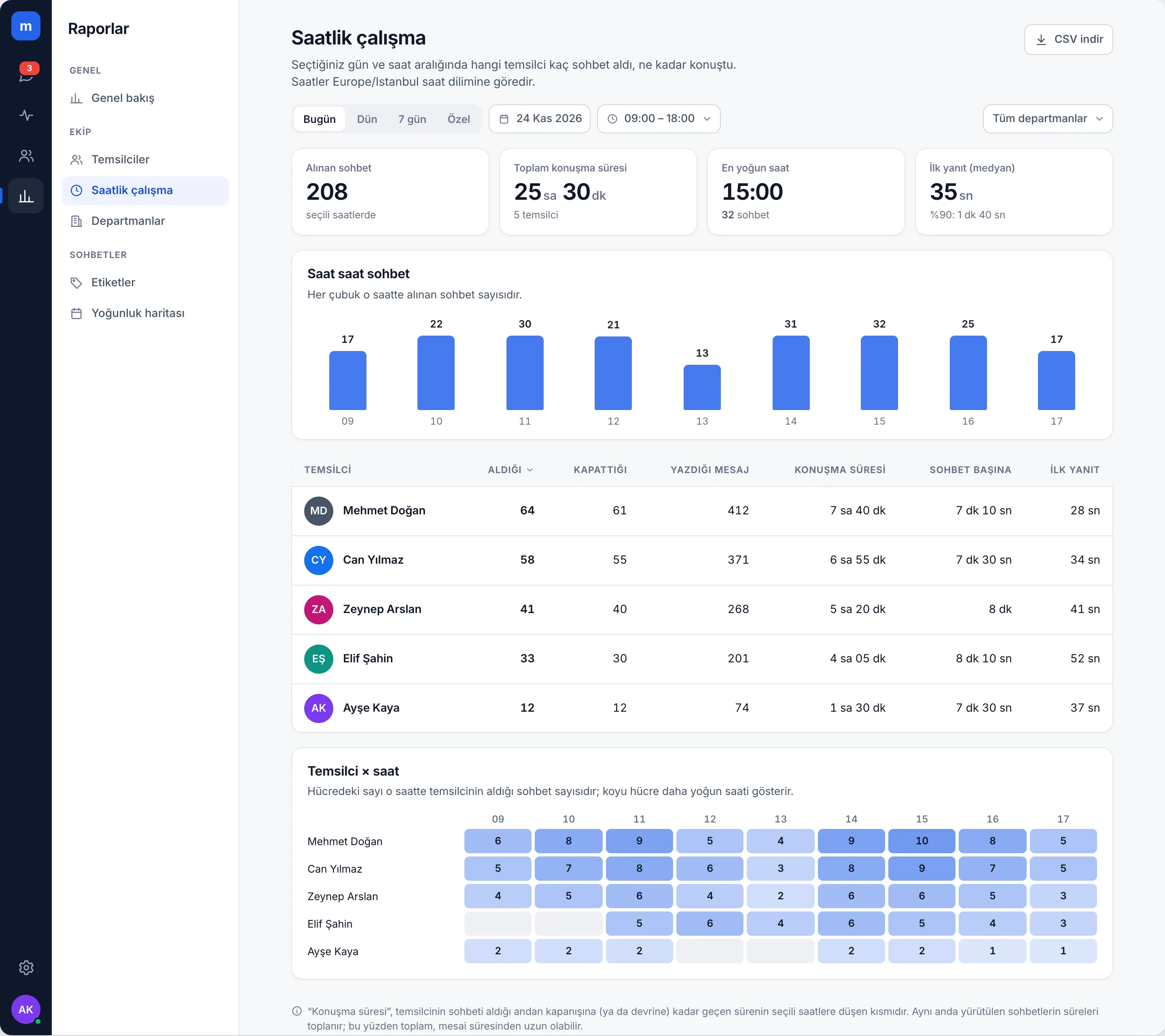
Hourly activity
For the day and hour range you choose: conversations taken and closed, messages written, talk time and first response per agent; hour-by-hour bars and an agent × hour grid.
Departments and tags
The same metrics broken down by department and tag: how many conversations come in on which topic, and which ones take longer.
Heatmap
A day of the week × hour heatmap. It shows the busiest slots for shift planning.
CSV export
The overview, agents and hourly activity reports download as CSV; accented and special characters open correctly in Excel.
For developers
For connecting MuChat to your own site and systems.
Widget commands
Open and close the widget with your own button (muchat("open")), listen to its events (muchat("on", …)) and set the language yourself. When a user logs out of your site, muchat("logout") clears the chat.
Reporting values from your site
Report values such as the cart total or the membership plan with muchat("set", …) and events with muchat("track", …); trigger rules run on them. These values stay in the visitor's browser.
Signed identity
For a logged-in user, your server generates a short-lived, signed token. You get the signing key from the panel; its secret value is shown only at the moment it is created.
API keys
Create API keys in the panel and revoke them when needed. A key's value is shown once.
Webhooks and actions
Signed webhooks that report chat events to your system, and actions that let an agent do things in your system without leaving the chat, come as plugins.
Privacy and security
How the product is built.
IP addresses stay inside
A visitor's location is looked up in a local database on the server; the IP is never sent to any outside service and is shown only to an agent who has access to the conversation.
No third-party code
The chat widget loads its font and language files from its own address; it calls no other company's tracking code or font service.
Accounts are separated in the database
Each account's data is isolated at the database level: one account's query cannot see another account's rows.
Keys are encrypted
The keys you enter for plugins are stored encrypted; the panel shows only the last few characters, and the full key is never returned in any response.
Messages are plain text
Nothing typed into a chat runs as code. Only web addresses are turned into links, and they open in a new tab.
Session security
When you change your password or your role changes, sessions on all devices are signed out. The login and signup screens do not reveal whether an email is registered.
Phone numbers are masked
WhatsApp numbers appear masked in the conversation; only authorized users see the full number, and who viewed it in which conversation is logged.
Form fields hidden in screen recordings
Anything typed into form fields is always hidden in a screen recording; this is not a setting that can be turned off.
Plugins
Channels, bot, translation and more
WhatsApp, Telegram, the AI bot, automatic translation, question flow, triggers, screen recording, webhooks and Google Analytics come as plugins; you turn on the ones you want in your account.
Get your first chat today
Create your account, paste the code into your site and talk to your first visitor.